
Claude Code on Your iPhone: Quick Remote Dev Setup with Termius + Tailscale
This post was written with assistance from Claude, an AI by Anthropic.
Want to run Claude Code from your iPhone or iPad? Here’s how I set it up - and yes, it actually works great for quick fixes on the go.
What You Need
- An Ubuntu machine (local, cloud VM, whatever)
- Termius app on your iPhone/iPad (free version works)
- A Tailscale account (also free)
Step 1: Set Up Your Dev Machine
SSH into your Ubuntu machine and run my setup script:
Friendly reminder: Always read scripts before running them.
TLDR: ./setup-machine.sh && sudo tailscale up → tailscale login → npm install -g @anthropic-ai/claude-code
git clone https://github.com/anuraj-rp/dotfiles.git ~/dotfiles
cd ~/dotfiles
./setup-machine.sh
Don’t want everything? Run individual scripts instead:
./install-tailscale.sh  # Required - for remote access
./install-nodejs.sh     # Required - for Claude Code
./install-tmux.sh       # Recommended - keeps sessions alive
Skip what you don’t need: install-docker.sh, install-vim.sh, install-starship.sh, install-nerdfonts.sh
All scripts support cleanup - e.g. ./install-vim.sh --clean (remove configs) or --clean-all (full uninstall).
The full setup installs:
- tmux - keeps your sessions alive when you disconnect
- vim with plugins (NERDTree, themes, git integration)
- Docker
- Tailscale - the magic that makes this work from anywhere
- Starship prompt - because life’s too short for ugly terminals
Step 2: Connect to Tailscale
sudo tailscale up
Follow the URL it gives you to authenticate. Then grab your Tailscale IP:
tailscale ip
Keep this IP handy - you’ll need it for Termius.
Step 3: Set Up Termius
- Open Termius → tap “+” → “New Host”
- Enter your Tailscale IP as hostname
- Add your username and password (or set up SSH keys)
Connect and you’re in!
Step 4: Using tmux (Essential for Mobile)
Start a named session:
tmux new -s dev
Now here’s the beauty - if your connection drops (happens on mobile), just reconnect and run:
tmux attach -t dev
Everything’s exactly where you left it.
Quick tmux commands (prefix is Ctrl+a):
| What | Keys |
|---|---|
| New window | Ctrl+a c |
| Next/prev window | Ctrl+a n / Ctrl+a p |
| Split screen | Ctrl+a \| or Ctrl+a - |
| Detach | Ctrl+a d |
Step 5: Install Claude Code
npm install -g @anthropic-ai/claude-code
Now just run claude and start coding from your phone!
Step 6: Add Claude HUD (Optional)
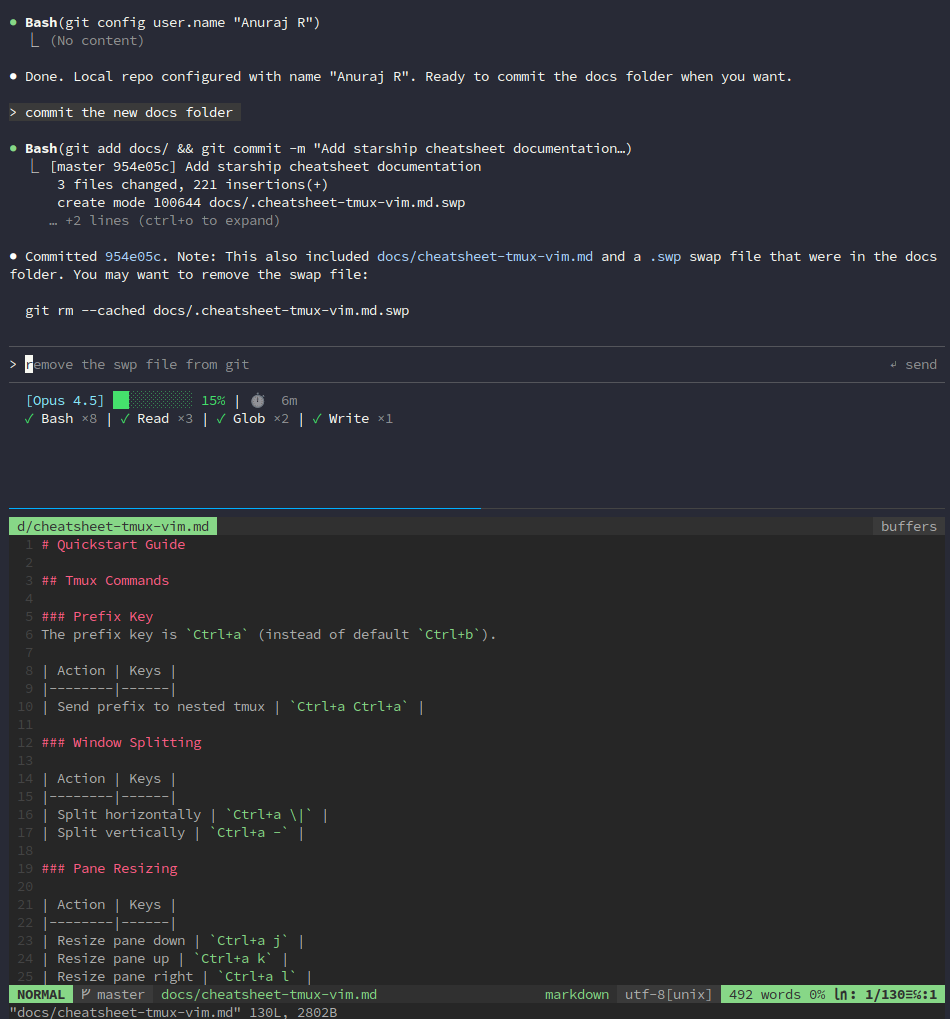
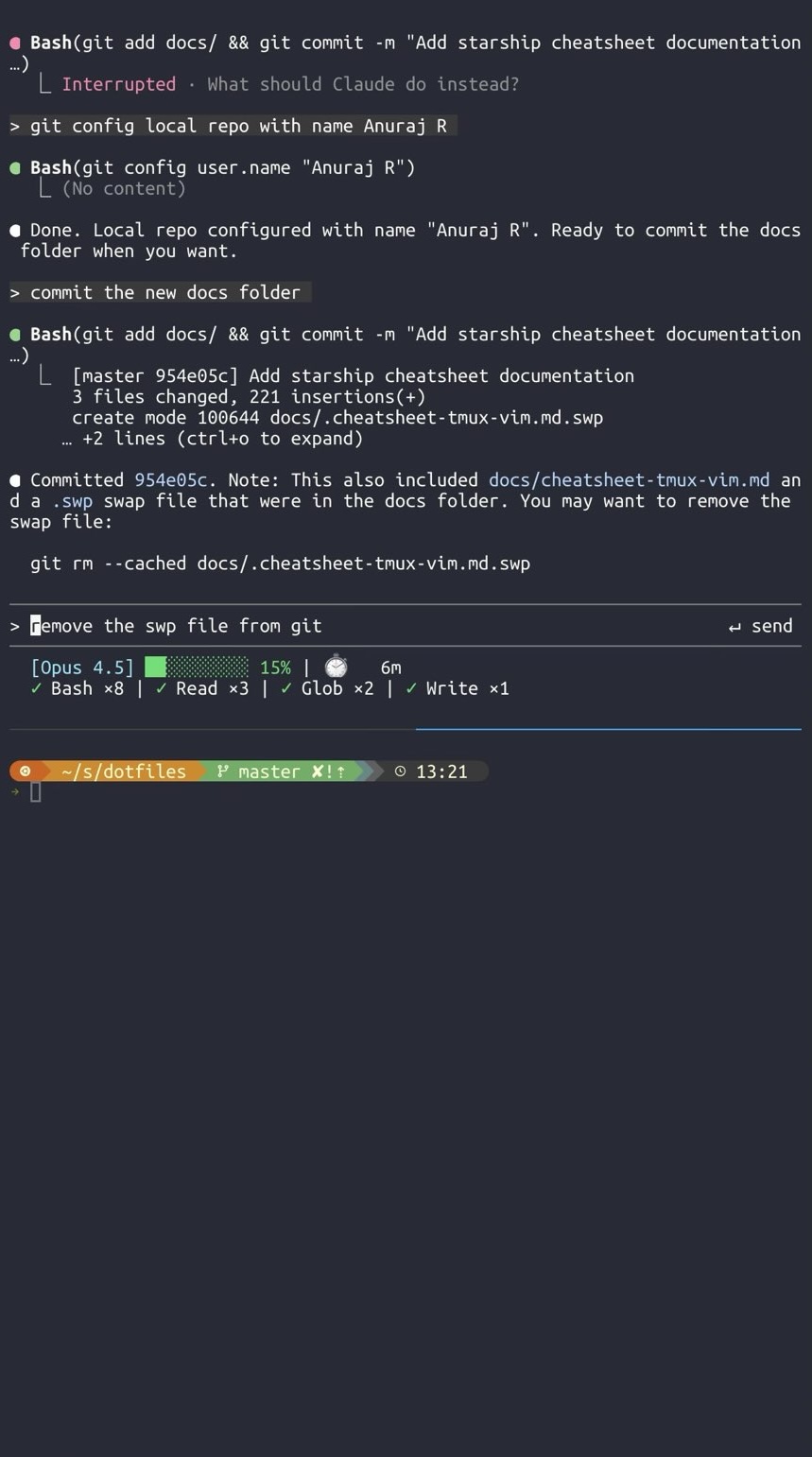
Claude HUD adds a statusline showing context usage, active tools, running agents, and todo progress.
Claude HUD demo
— Jarrod Watts (@jarrodwatts) January 2026
Install it from within Claude Code:
/plugin marketplace add jarrodwatts/claude-hud
/plugin install claude-hud
/claude-hud:setup
Step 7: Add Speech-to-Text (Optional)
Typing on a phone keyboard gets old fast. Speech-to-text makes Claude Code on mobile genuinely productive - dictate your prompts instead of pecking at tiny keys.
For iPhone/iPad: Wispr Flow
Wispr Flow is an AI voice keyboard that works inside any app. Install it, enable the keyboard in iOS Settings, then switch to it when you want to dictate in Termius.
- Automatically adds punctuation and removes filler words
- Works in 100+ languages
- Free tier gives 2,000 words/week
To use: tap the globe icon on your keyboard → select Wispr Flow → start talking.
For Desktop (Mac/Windows/Linux): Voquill
If you’re also using Claude Code from your desktop, Voquill is an open-source alternative worth checking out.
- Runs Whisper locally (no cloud required) or via Groq API
- AI cleanup removes filler words automatically
- Personal glossary for technical terms
- AGPLv3 licensed
Both tools turn voice into polished text, which is exactly what you want when dictating code prompts.
Pro Tips
tmux plugins - Press Ctrl+a Shift+i after first launch to install session persistence and vim integration.
Multiple machines? Run tailscale status to see all your devices. Add each to Termius and switch between them easily.
Why This Works So Well
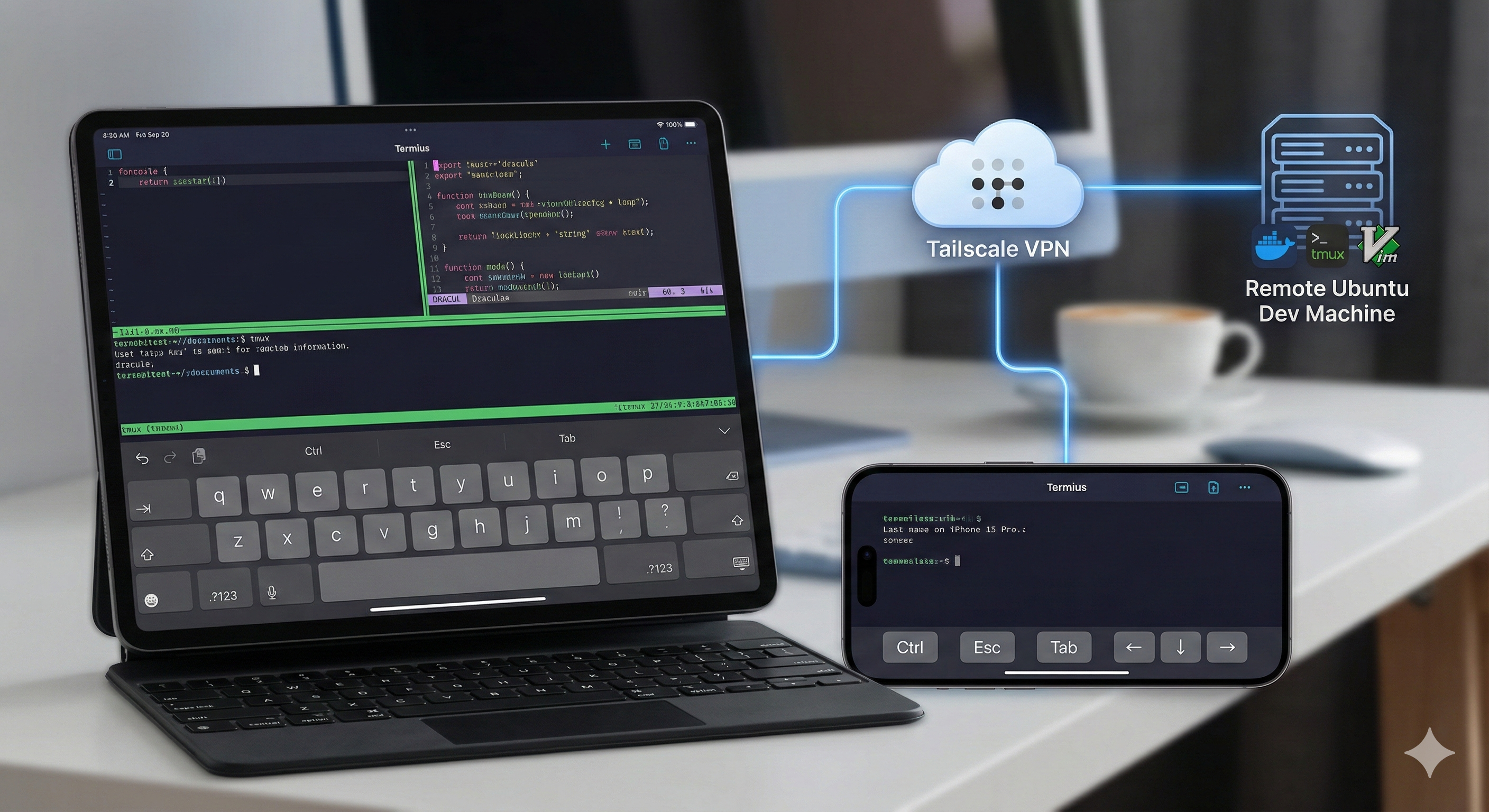
Tailscale creates a secure mesh network between your devices. Termius gives you a proper terminal with a mobile-friendly keyboard row (Ctrl, Esc, arrows). And tmux means you never lose your work when switching apps or losing signal.
I’ve used this setup on trains, buses and coffee shops. It’s surprisingly usable for quick bug fixes and code reviews. Give it a shot!